
Create an account and sign in
Email, mobile code and Google sign-in, plus password recovery and session settings.
3 min read
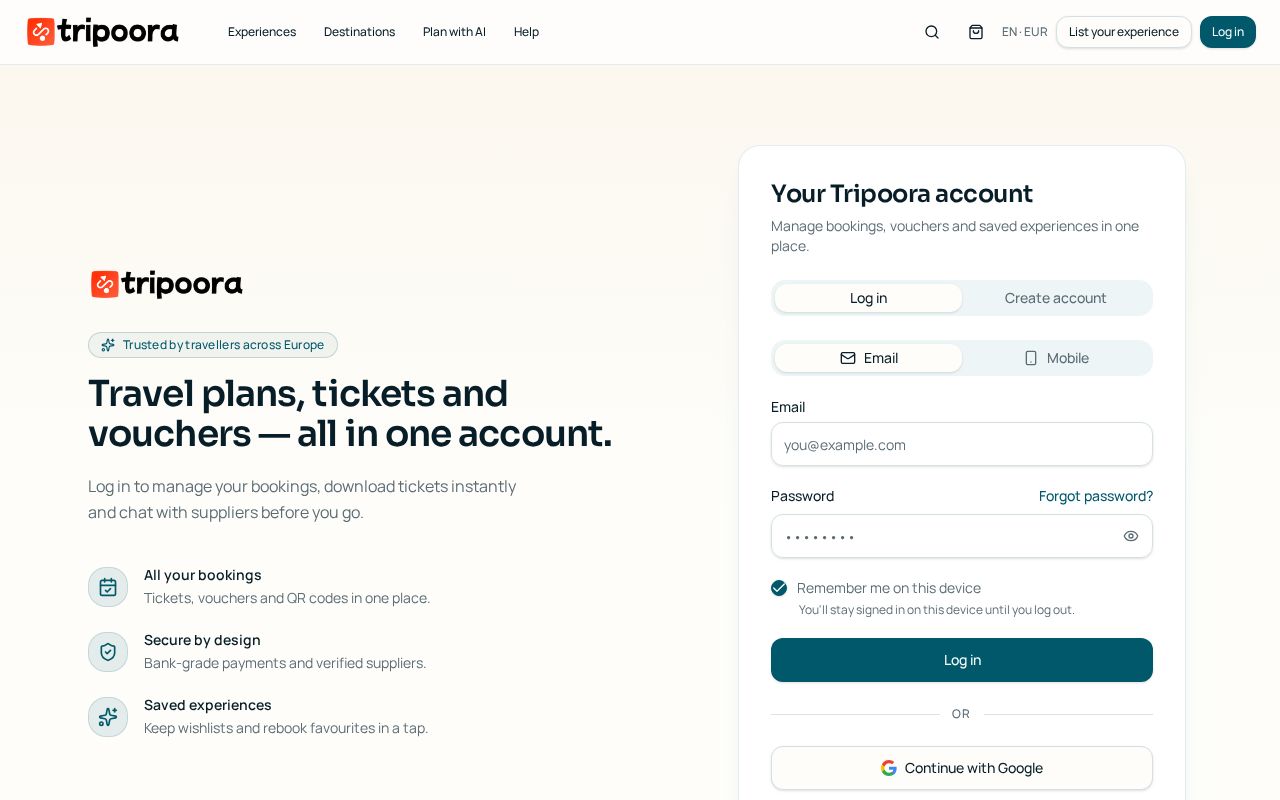
You can sign in three ways: email and password, a one-time code sent to your verified mobile, or Google.
Step by step
- 1
Choose a method
On the log-in screen switch between Email and Mobile, or continue with Google.
- 2
Verify a mobile number
Enter your number in international format and type the 6-digit SMS code. The number is then reusable for passwordless sign-in.
- 3
Recover a password
Use Forgot password to receive a reset link by email; the link expires for security.
- 4
Stay signed in
Tick Remember me on this device to keep the session, or leave it off on shared computers.
- 5
Claim guest bookings
Signing up with the email or mobile used at checkout automatically attaches your previous guest bookings.
Frequently asked
I did not get the SMS code.
Wait for the resend timer, check the country code, and make sure the number can receive international SMS.
Can I change my email?
Yes, in Account → Profile. A confirmation link is sent to the new address.